The recommended way to install user styles is to use Firefox with Stylish.

If you already have Firefox with Stylish, make sure this site is allowed to run JavaScript.
You've installed this user style in Stylish. To uninstall it, open the Tools menu, choose Add-ons, click the User Styles panel on the top, click on the entry for this user style, and click Uninstall.
Like customizing Firefox? Customize your new tabs with New Tab King.
You've installed this user style in Stylish. To uninstall it, open the Tools menu, choose Stylish, and remove the entry from there.
You've installed this user style in Stylish, but a newer version is available.
To uninstall this user style, open the Tools menu, choose Add-ons, click the User Styles panel on the top, click on the entry for this user style, and click Uninstall.
Like customizing Firefox? Customize your new tabs with New Tab King.
The recommended way to install this user style is to .
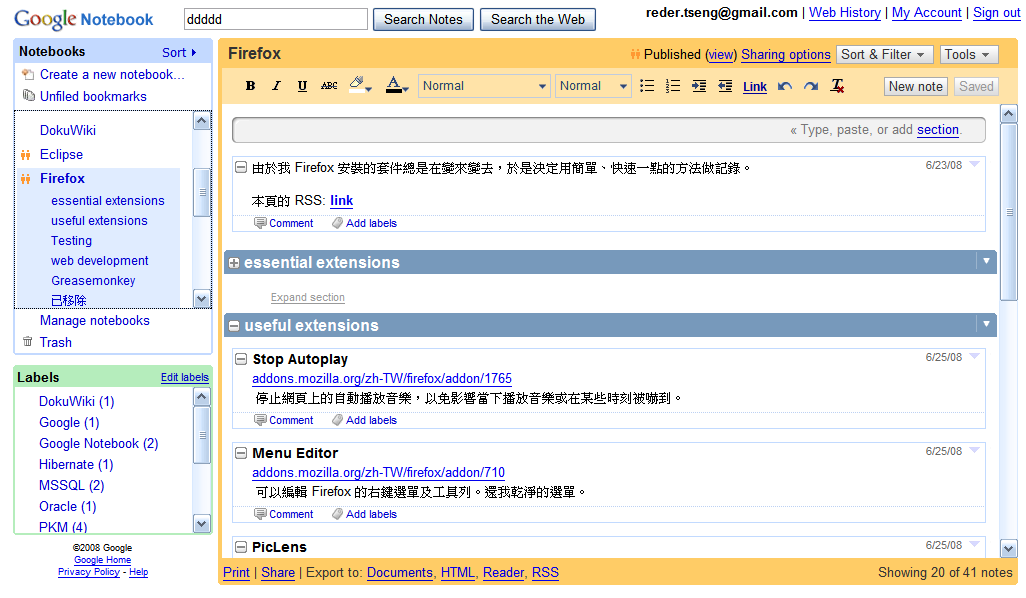
This is a similar style to another style created by me ( Google Notebook tweak - for 1024 x 768 screen ), but it remove the Google bar on the top and move the search area and Google Notebook icon to there. Therefore, it has a larger editing area.
This style is for my screen, which is 1024 x 768. If you have a larger screen, you can remove table.p div#gn0_5 {width:200px !important;} table.p div#gn0_6 {width:800px !important;} or change to the variable whatever you like.
'08 7/31 updated: fix the width of toolbar. '08 10/28 updated: remove #gn0_5 {width:200px !important;} , since it will ruin the small window. '08 11/3 updated: Use a better way to fix the small window. Therefore, the full window view has a larger editing area now. '08 11/24 updated: Add comments and change some margin and padding of the areas.