Most popular Themes, Skins & Backgrounds
Style with custom themes! Change the background, color, schemes, fonts, and more! Share your own themes too!
















Top Rated Themes, Skins & Backgrounds











Newest Themes, Skins & Backgrounds


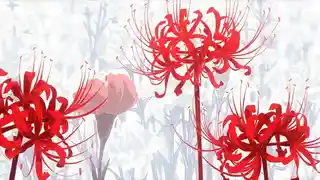


























Cursor Styles Themes, Skins & Backgrounds


Youtube Styles Themes, Skins & Backgrounds


![Dark YouTube [Pink]](https://assets.userstyles.org/assets_packs/type=style/user_id=435915/screenshot_4dccb943-0844-4cd2-9d15-ab7be14e307b_thumb.webp)


Roblox Styles Themes, Skins & Backgrounds


Google Styles Themes, Skins & Backgrounds


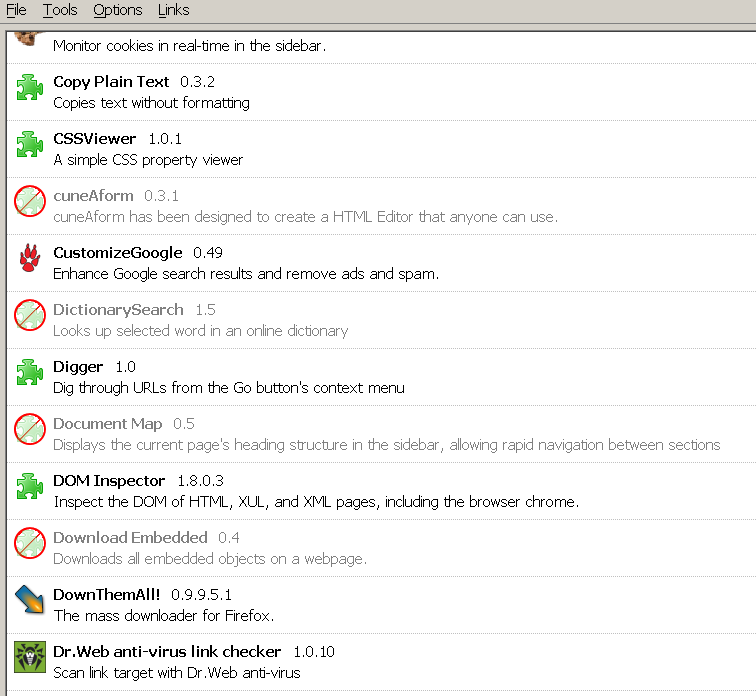
Extension Manager - Disabled Exts Crossed Out Norm
Recommended Styles
Information
LICENSE
Not setAPPLIES TO
DESCRIPTION
DATE CREATED
July 06, 2006
LAST UPDATED
November 26, 2007
SHOW CSS
Enjoyin' Stylish?
Rate Us
thanks
rateStylish
What`s wrong?
Submit Feedback
Comments